How to Mint on AlgoDesk.IO
Welcome to my first ever guide. Since most artists have never used AlgoDesk to mint, I wanted to show how easy it is to get set up!
First Connect your wallet through the main net. This can be done by scanning the QR code through your mobile App, or by logging in through AlgoSigner or MyAlgo. Make sure you are connected to Main Net.

Once you are logged in, your wallet screen should look like this:
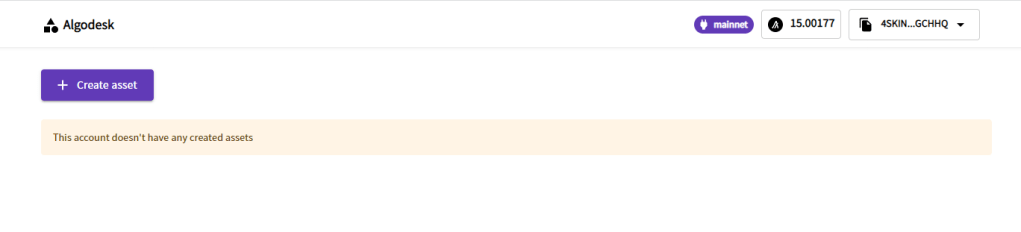
To get started minting your first NFT, click +Create asset.
When you do that, a pop up will appear. This is where you fill out your information in regards to the the creation of the ASA.

You will input the following fields:
Name: Name of ASA.
Unit Name: ASA designated tag. Keep consistent for series.
Total Supply: Number of copies of ASA.
Decimals: If you want your ASA to be fractional, add the number of digits you would want. If you want 1.00, you would select 2.
URL: Url of file to be minted.
Metadata: IPFS Hash from sites like Pinata.cloud.
Manager Toggle: Leave on.
Reserve Toggle: Leave on.
Freeze Toggle: Lets you lock an ASA in a person’s wallet. Useful for functional NFTs, but not good for artwork.
Clawback Toggle: Lets you rescind an ASA from a person’s wallet. Useful for functional NFTs, but not good for artwork.
Notes: Where you can input ARC69 Metadata or use NFTExplorer.app for no coding experience required.
Once everything is filled out properly, click Create. Either log in again through AlgoSigner or MyAlgo, or confirm the transaction in the mobile wallet.
Congratulations, you have just minted your first ASA on Algodesk!
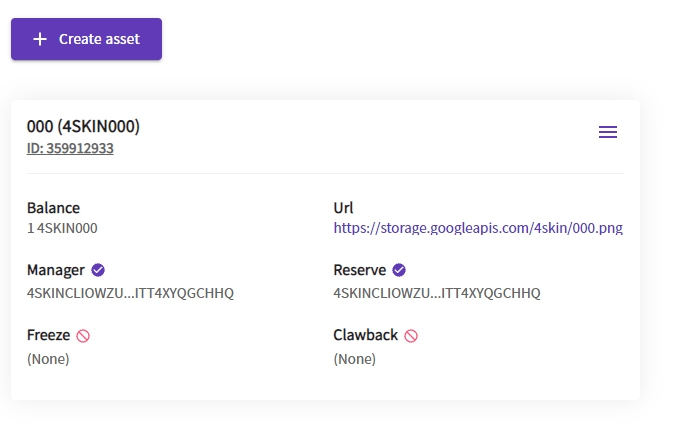
Side Note: If you are confused about the MetaData Hash, on pinata.cloud it can be found under the CID as seen here:

 LoafPickle Worldwide